
DuckLake and BI Tools
Yep, it Works


I think it’s no secret at this point, but if you saw my post the other day or the LinkedIn announcement, you’d know that Alex and I are hard at work on the O’Reilly book titled “DuckLake - The Definitive Guide”. With that being said, when Ducklake first came out in 2025, I was amazed at how easy it was to get up and running; but like most data warehousing/“lake-housing” I’ve done in the past, I always am curious on how these implementations look on downstream BI tools. Because let’s be honest folks:
“Your data is worthless if it can’t be analyzed”
Some might scoff at such a statement and say “how dare you”, but I would respond with “why go through the effort to curate this data if no one is going to use it to make informed decisions?”
Anyways, today’s article shows how to get DuckLake to talk to Tableau Desktop.
Side Note - Out of all the BI tools I’ve used (I’ve used most of them), Tableau is by far the easiest and most intuitive. That’s just my opinion though
Step 1: Let’s Build a DuckLake
For today’s article, I will use a python script and duckDB to build out some fake datasets - a classic order header and detail, with the theme of this one being a store that sells flashlights. Honestly though, thanks to the advancements in LLM’s over the last year, I just gave copilot and GPT 5.3 codex this prompt and it generated the python script in less than 10 seconds:
“i’m using uv and duckdb; i want a python script here that leverages duckdb to create a couple data files in csv; an order header and and order detail; the order detail data needs to join to the order header; the order data theme is a flashlight store; it needs things like order id, order date, order year, order month, sku, order amount, quantity; stuff like that; i want as a param to specify the number of orders i want it to generate”
Once the script was ready, all I had to do was run this in terminal:
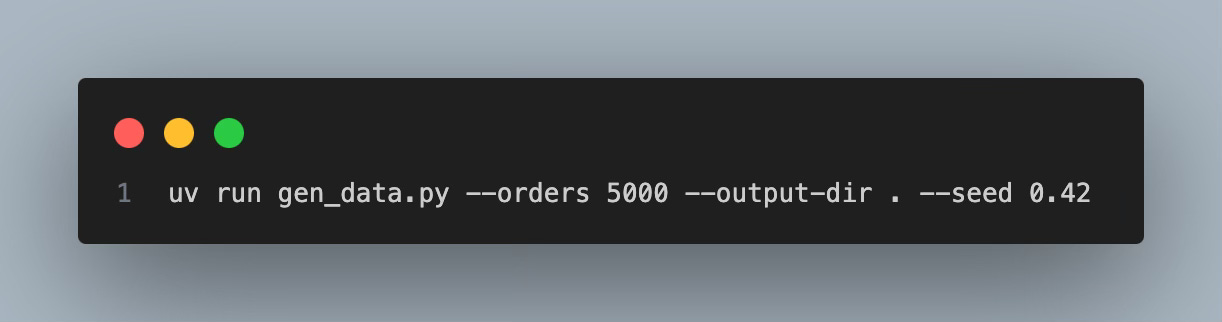
And voila - 2 csv’s were generated. Now onto the funner part - let’s load this data to some ducklake tables in AWS. To do that, all you need is a simple script like this:
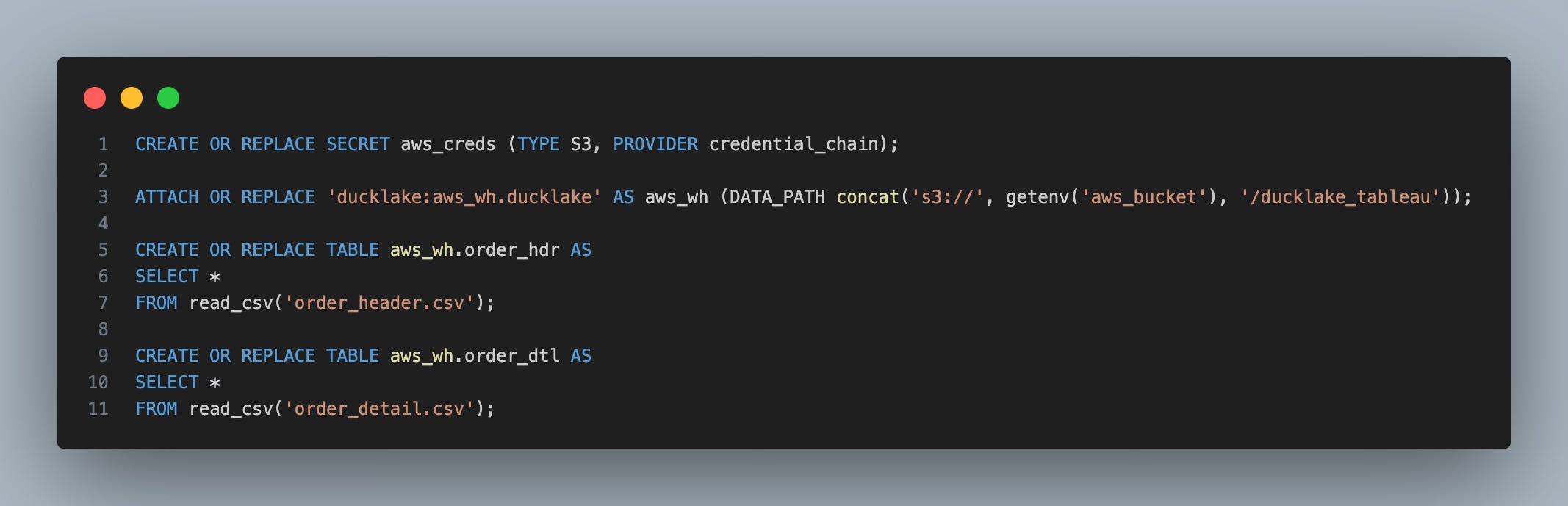
I ran that in the duckdb CLI and within a couple seconds, my ducklake catalog was created and the CSV data was slingshotted up to S3 from my laptop. Simply amazing at how brain-dead easy this is.
Ok - We Have Our Lakehouse - But What About Tableau?
Tableau desktop can be downloaded as a free trial, which is what I did. And DuckDB has good documentation that can be found here that shows how to connect to Tableau. So for my first attempt, I clicked on the “Other (JDBC)” connector for tableau, set the dialect to Postgres on the drop down and then connected to a duckdb database like this:
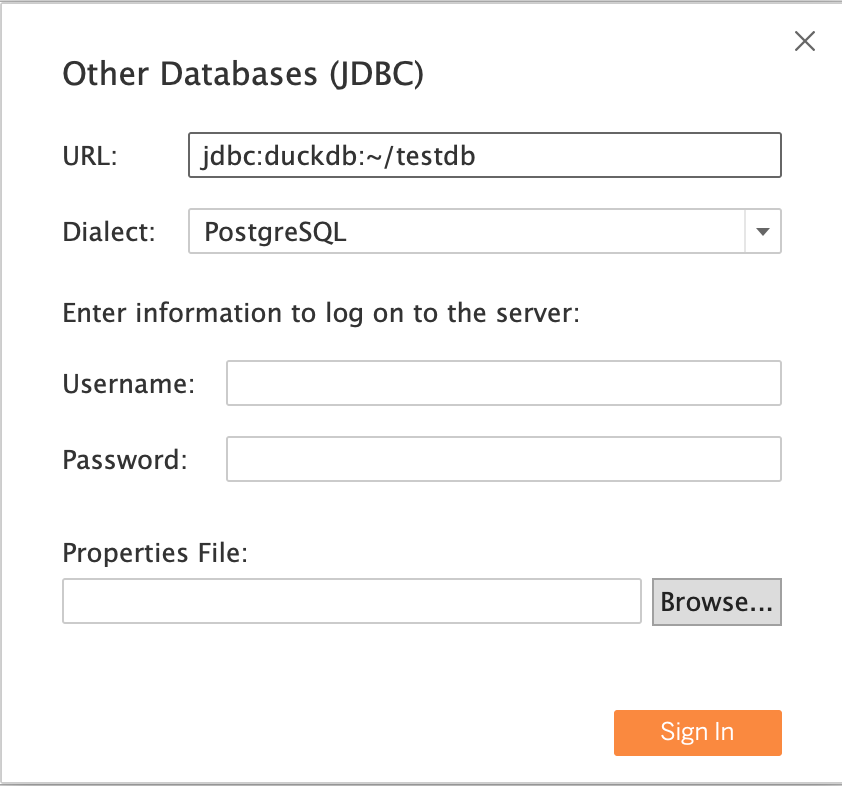
The connection worked fine, but then here was the fundamental problem:
How Do I now add in my AWS creds and attach my ducklake catalog?
After some snooping around on Google and consulting some experts, the only real solution would be to use a Tableau connector that would support an “initial SQL” statement e.g. when you connect, run this command first before connecting to the actual database.
But then lo and behold, if you read further down on DuckDB’s Tableau documentation, MotherDuck has put out their own custom connector for Tableau that does allow an init sql statement. So I figured, is this all I need? Let’s go try:
Download this “taco” file from here
a taco file is a custom connector file for Tableau
Once its downloaded, copy it into this path (if on a Mac): ~/Documents/My Tableau Repository/Connectors
restart Tableau
You should now see in your connectors menu a new one called “DuckDB by MotherDuck”
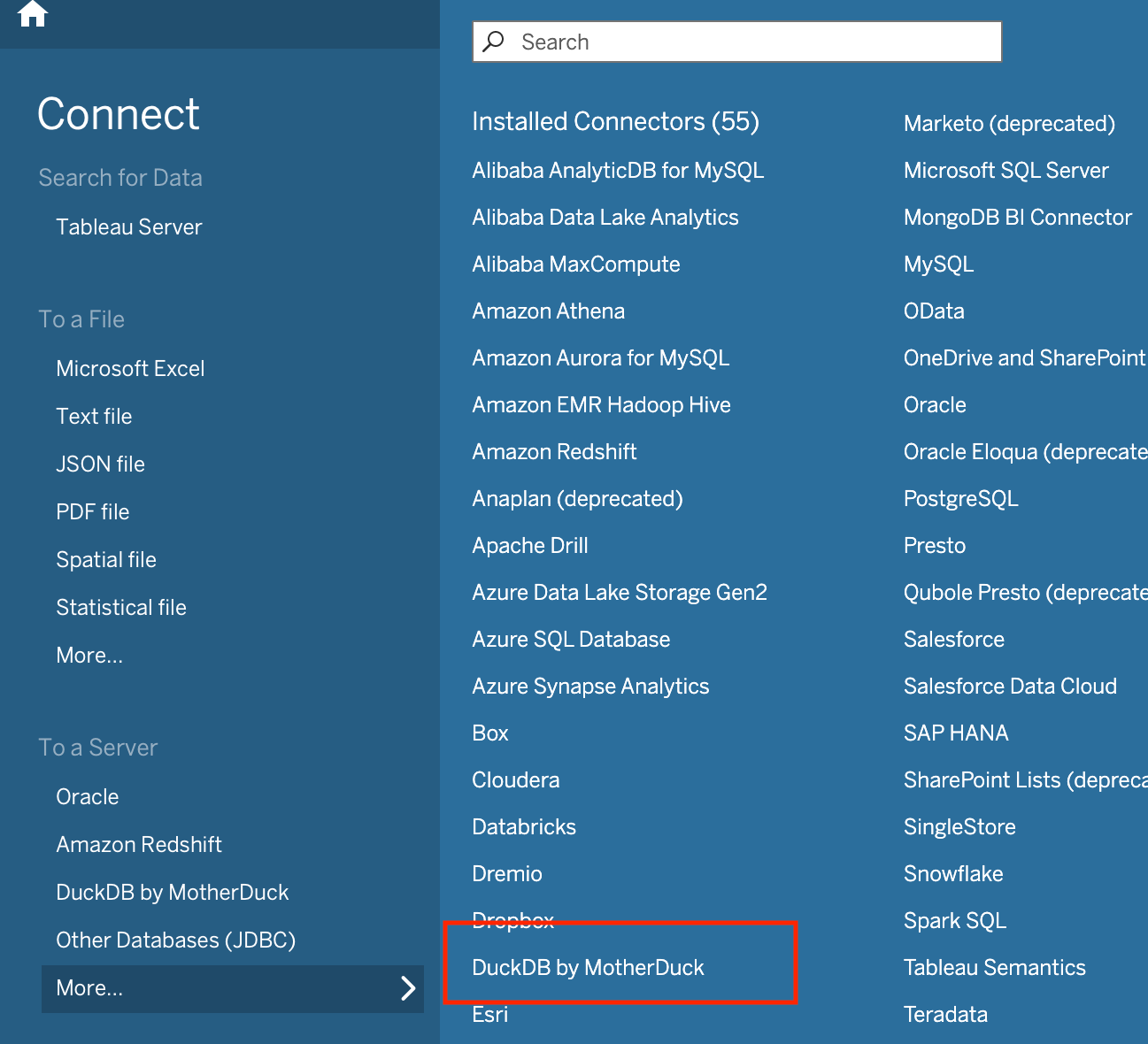
Click on that and you will see this pop-up that has a general and an “Initial SQL” tab:
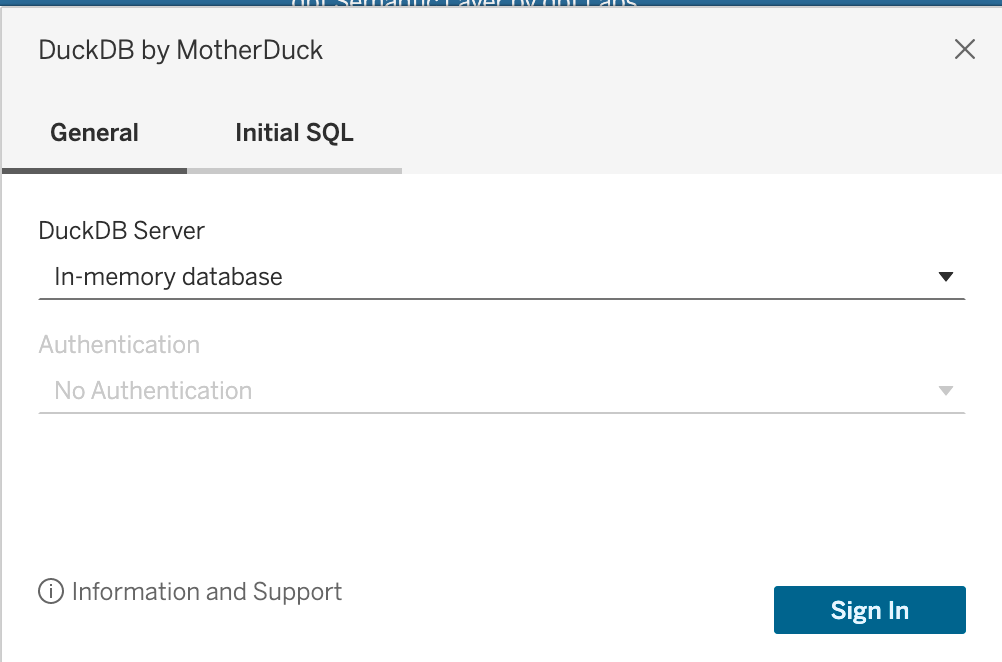
Click on the Initial SQL tab and add in your secrets command as well as attaching the ducklake catalog that you had previously generated in the earlier part of this article:
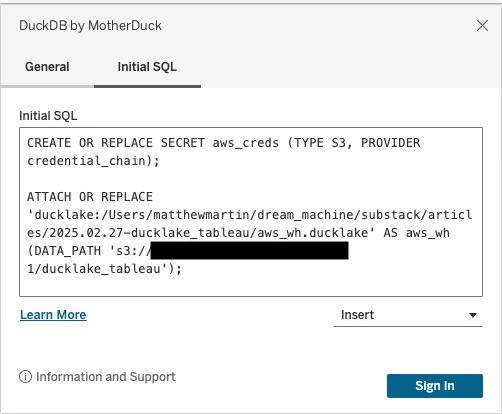
After that, hit sign-in and you should be at the landing page that shows your available schemas and tables:
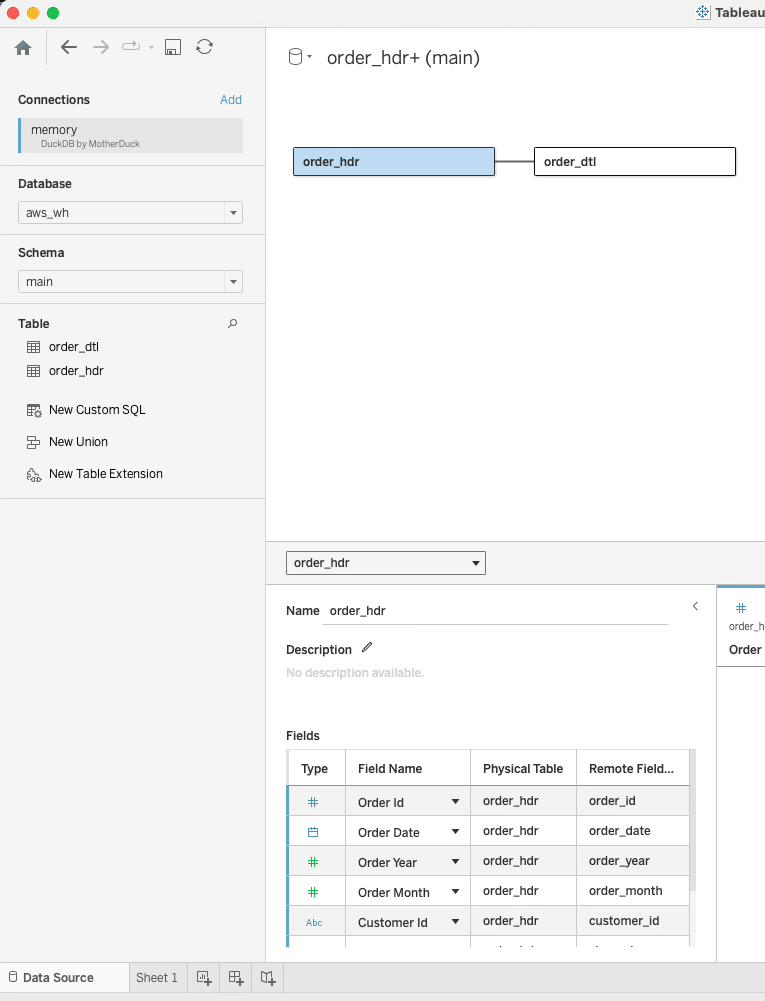
Under database, we should see our “aws_wh” we created with ducklake and attached. Then under main, we should see our tables. Let’s drag those on the canvas and start slicing:
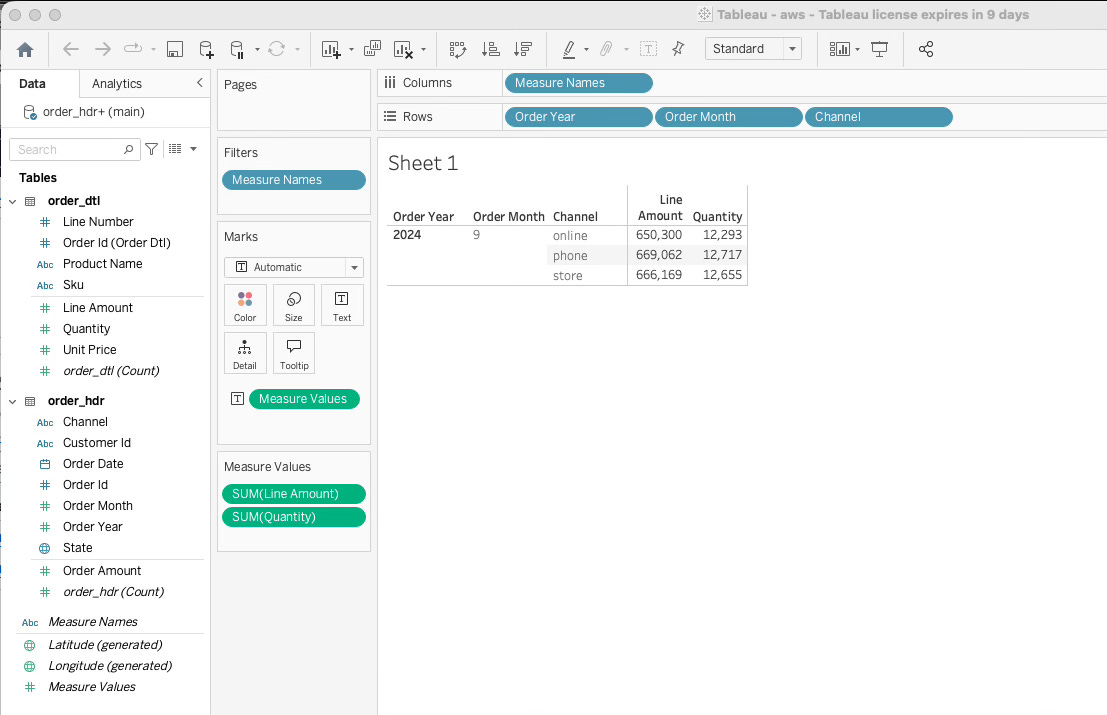
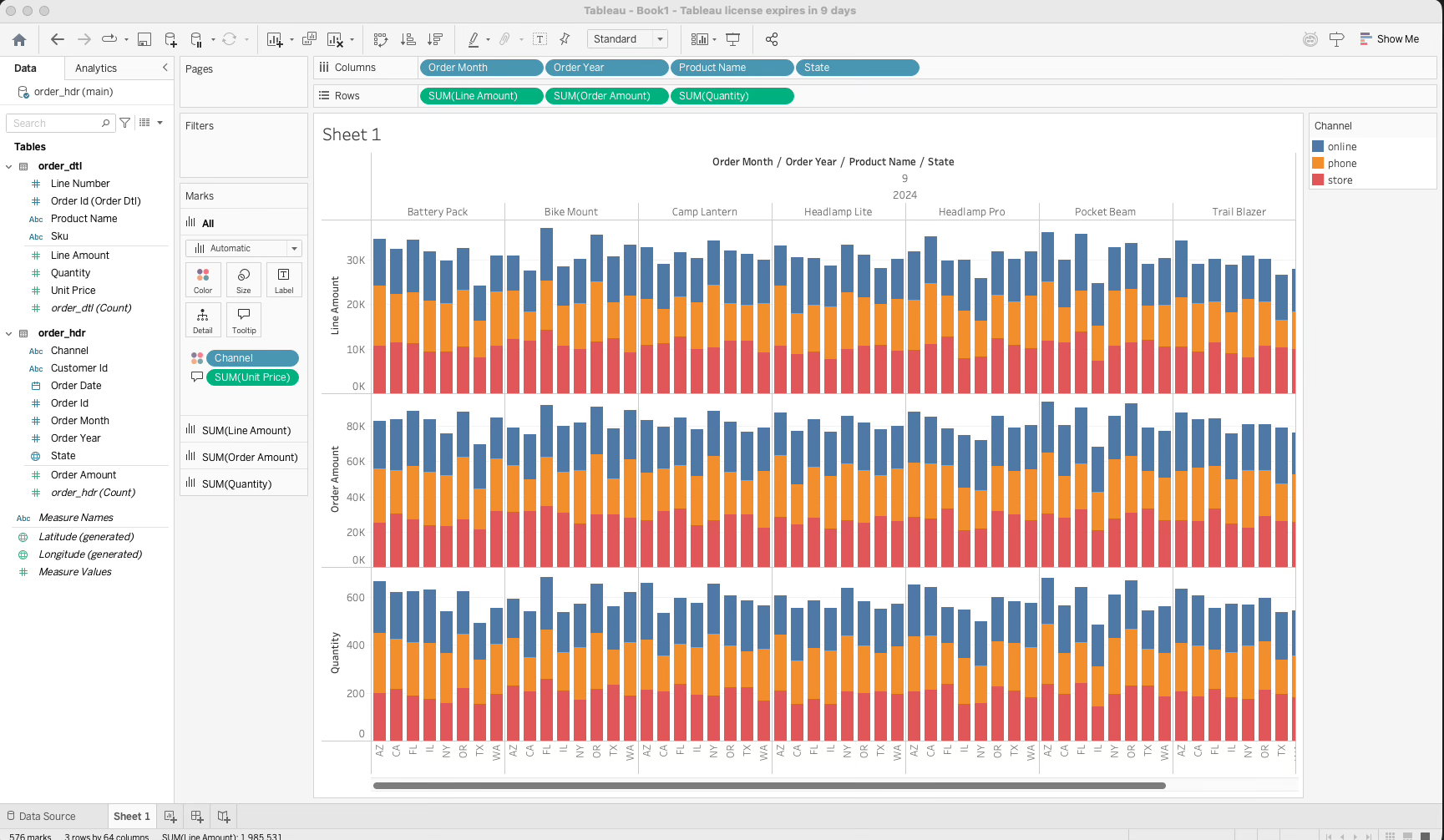
Boom - it worked. Tableau is using DuckDB and connecting to our ducklake tables that live and breath in AWS S3. Winning!
Here’s another slice I did for fun:
Conclusion
This article showed us how to create a simple ducklake lakehouse from scratch, inject some dummy data, send it up to S3, and then have Tableau connect and visualize it. In regards to other BI tools such as PowerBI, I have not done much research; but the kicker is that as long as the connector supports an “initial sql” block, you should be able to make it work.
Hope this helped you learn something!
Thanks for reading,
Matt
quacking post. I've started on some ducklake stuff this week!